
Hints and Tips with the Modify 3D Command
The intention of this Hints and Tips guide is to help you use the Modify 3D commands
more effectively and efficiently.
It is divided into the following areas according to the relevant Modify 3D command:
-
Problem:
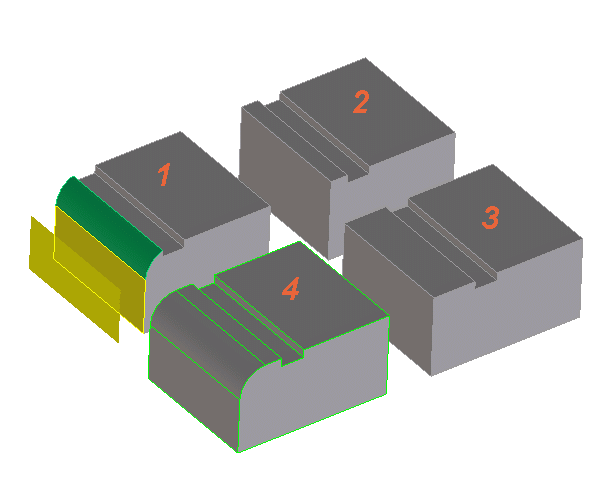
A Modify 3D operation needs to redo a blend adjacent to the modified
faces. However the blend could not be suppressed because its structure
may have been destroyed by a previous modeling operation.
-
Possible Solutions:
-
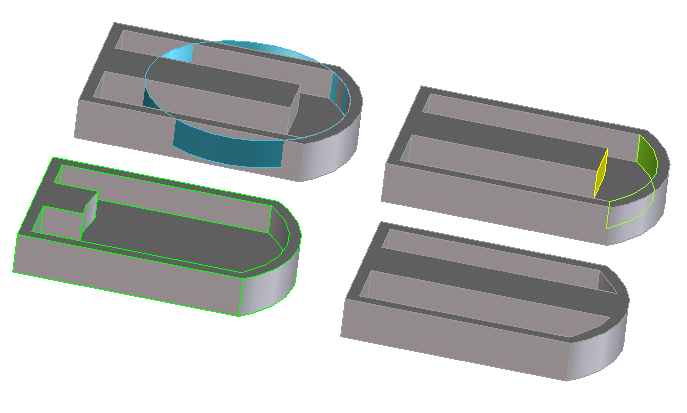
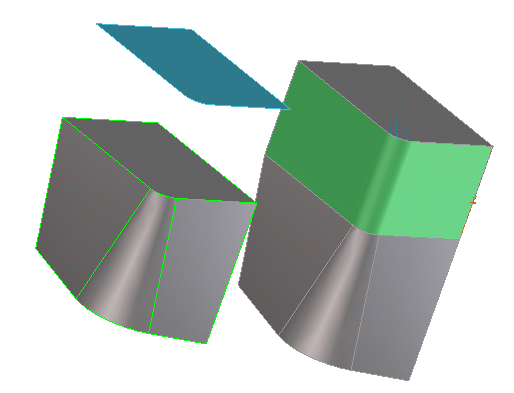
Try to remove the blend with a machining or align command (picture 2) and
recreate the blend after performing the Modify 3D operation (picture 4).
-
Try to switch off Redo Blend if the intent of the modification allows.
-
Try to use the Redo Blend control mechanism in order to avoid the suppression
of the blends that could not be suppressed.
-
Problem:
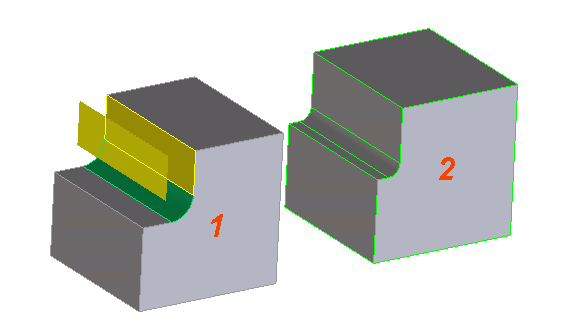
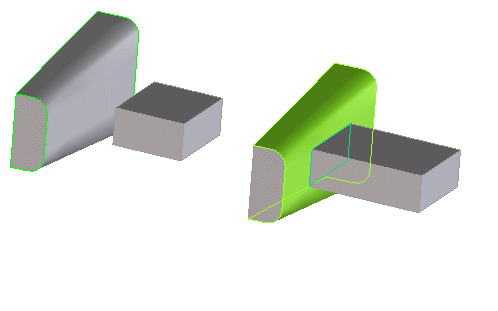
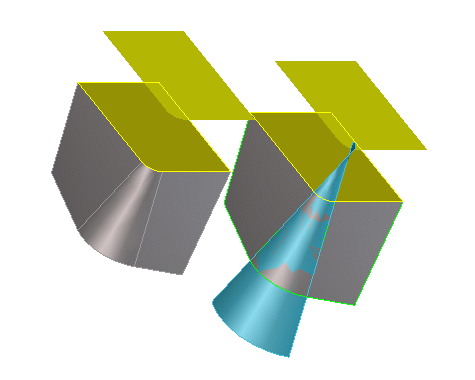
A Modify 3D operation needs to redo a blend adjacent to modified
faces. The blends could not be recreated after performing the Modify 3D
operation (picture 1). This might happen because:
-
The Modify 3D operation created new edges that would also need blending.
-
The Modify 3D operation did not leave enough space for the blend to be fitted into
the model.
- Possible Solutions:
-
Try to remove the blend before the operation. Perform the requested operation
and apply the modified (in this example, the smaller) blend as necessary
afterwards (picture 2). Add blend radii to the newly created edges.
-
Try to use the Redo Blend control mechanism in order to avoid suppression
of the failing blends if the intent of the modification allows.
-
Problem #1:
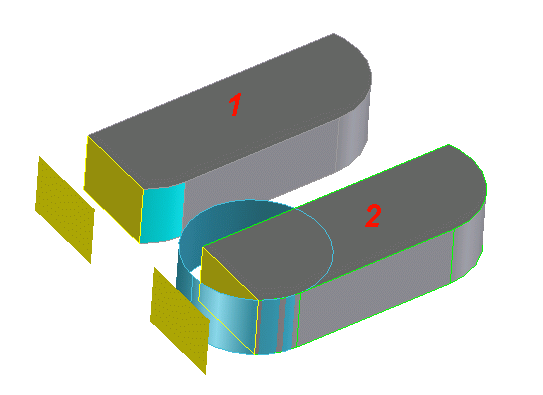
The moved face loses contact to a previous neighboring face. In the
following example (picture 2), the cyan cylinder does not intersect with the moved planar
face.
-
Possible Solutions:
-
You may need to add more faces to the move operation
-
Make sure that the move face still has contact to the neighbor faces by
extending geometry (freeform only) using an Untrim operation
-
Problem #2:
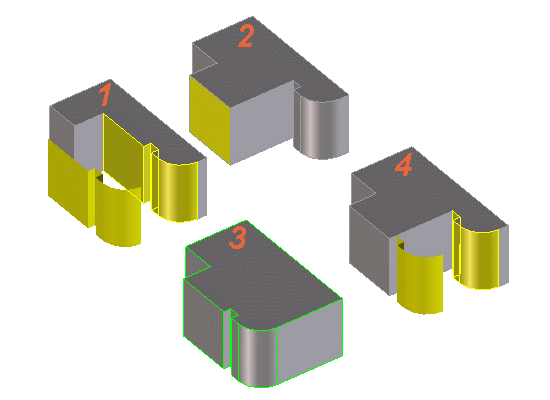
The move face would create a gap in the model that cannot be closed
by extending neighbor faces, but would need to create additional faces.
-
Possible Solution:
-
Move the faces one after the other. For moves with a single face
the necessary faces to fill the gaps can be automatically created for many
cases.
-
Use the Lift command (as shown in the picture 2) since
that will insert new side faces in the model first, then move the remaining
faces (pictures 3 and 4)
- For more tips, see General Modify 3D Tips.
Taper Faces Tips
- Problem #1:
This type of surface cannot be tapered with standard taper. Only planes,
cylinders and cones can be tapered. For cylinders and cones, the axis needs
to be parallel to the draft direction. (The face normal of the red face
in the example is not parallel to the cylinder axis).
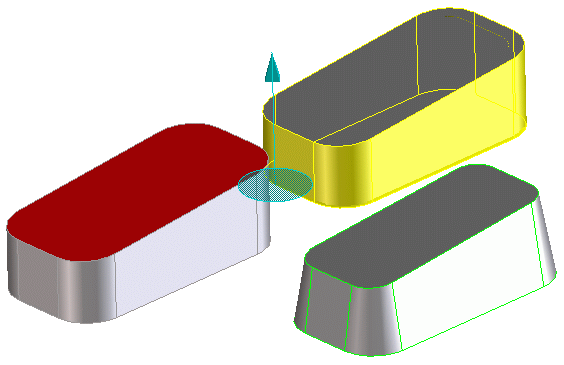
-
Possible Solutions:
-
Use a draft direction parallel to the cylinder and cone axis (in the above example,
the bottom face was used).
-
Use the Advanced Taper command that allows tapering of freeform geometry and
cylinders and cones whose axis are not parallel to the draft direction.
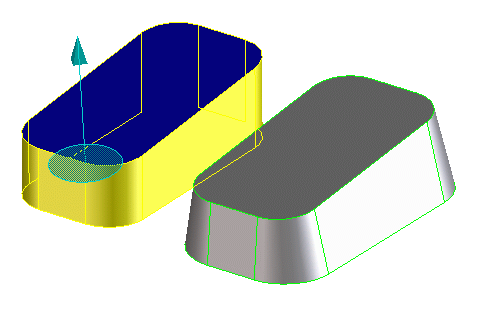
- Problem #2:
The face normal of a selected face is parallel to the draft direction.
This face cannot be tapered since it would vanish by definition.
- Possible Solutions #2:
Advanced Taper Tips
-
Problem #1:
One or more of the fixed edges are parallel to the draft
direction. This would lead to a corrupt taper surface.
In the example below the red face must not be used as a fixed element since
the edge common to the fixed face and the taper face would be parallel
to the draft direction.
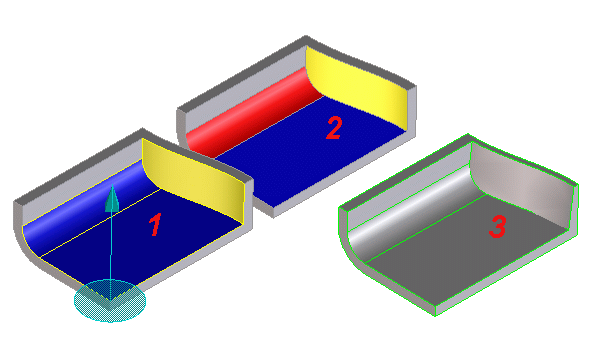
-
Possible Solutions:
-
You need to use a different draft direction.
-
Do not specify the parallel edges as fixed edges (see picture 2).
-
Problem #2:
Different draft angles are specified for different faces of a tangential
face set
-
Possible Solutions:
- Faces that are tangentially connected need to be tapered with the same
draft angles
-
For more tips, see General Modify 3D Tips.
- Problem:
Offset surface may become self-intersecting. If the curvature radius
of a face is smaller than the offset distance, the surface will become
corrupt or it will vanish when it is offset.
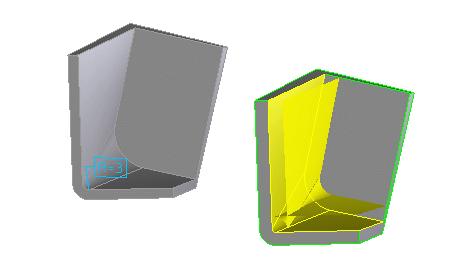
-
Possible Solution:
-
Use a smaller offset distance that avoids self-intersecting surfaces.
-
Use the surface analysis command to check which values are the maximum possible.
-
Problem:
Offset surface loses contact to a neighboring face. This may happen
if an adjacent face is tangentially or nearly tangentially connected to
the offset face.
-
Possible Solution:
-
Use the Lift command to add new faces.
-
Offset the neighboring faces with the same value also.
- For more tips, General Modify 3D Tips.
-
Problem #1:
Align might create a wrong or no solution because of the incorrect
"opposite" setting. For closed faces like cylinders and tori this may
make a difference in selecting from multiple possible solutions.
-
Possible Solution:
-
If the face normals of the change face and the reference face of the expected
result is flipped by approximately 180 degrees you need to activate the
opposite option.
-
Problem #2:
The geometry of the reference face is not large enough to come into
contact with all neighboring faces of the changed face.
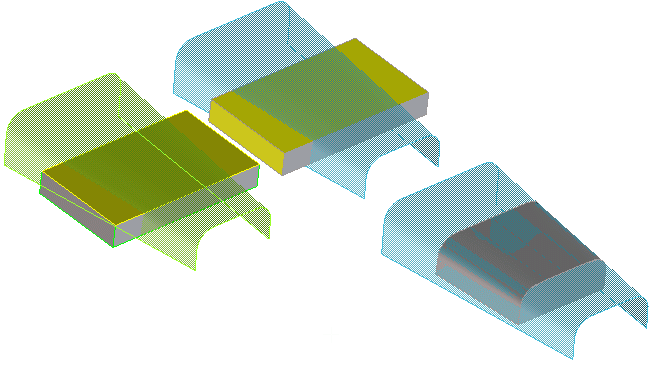
-
Possible Solutions:
-
Add the faces that do not touch the reference face to the changed faces
(here the small side faces of the block).
-
For freeform geometry use the Untrim command to enlarge the reference geometry
until it intersects with all neighbor faces.
-
If there is no connection (intersection) with all neighboring faces of the
changed faces, the align operation fails.
-
Problem #3:
The change face may have a tangential neighbor that does not intersect
with the reference face.
-
Possible Solution:
-
If you want to replace more than one face of a tangential face set you
need to specify all faces of the face set at once (multi-face align)
- For more tips, see General Modify 3D Tips.
- Problem:
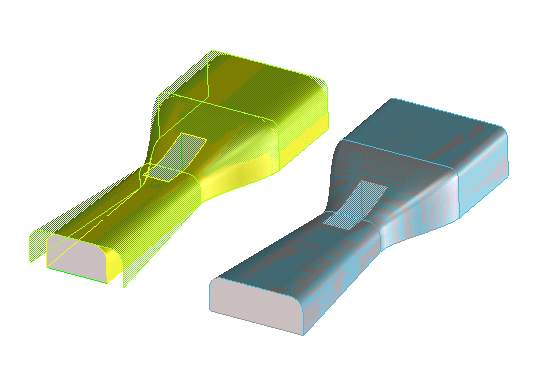
Freeform Surface Enlargement:
During a modification using either move, offset, taper, change radius
or align, the operation often needs to enlarge freeform geometry. Often,
the modified faces itself as well as the direct neighboring faces of the modified
faces potentially need enlargement. Depending on the shape of the surface
the enlargement distance might be limited or the surface might become self-intersecting
or corrupt in the enlarged area. The Modify 3D commands try an automatic
surface enlargement. However, this is limited to avoid enlarging the surfaces
by more than their current size.
- Possible Solutions:
-
Avoid generating freeform surfaces whose borders meet at a corner point
nearly parallel or antiparallel. Generate more than one surface instead.
-
Avoid generating freeform surface that are of strongly "tapered" shape.
-
Use Untrim command with the replace geometry option if the automatic extension
(twice original size)is not sufficient but can be safely extended.
-
Use Untrim command to visualize how far the surface can be extended. If
the extension is not the desired one, you need to modify the surface or
add an additional surface using methods from the surfacing module like
"extrude face" or "loft to part".
(In the following example, loft to part was used.)
Note: Although this section is not new with release
SolidDesigner 2001, the graphics have been
enhanced and some of the workarounds modified to reflect improvements.
It is included in this training for completeness.
There are several situations in which the blending or chamfering of one
or more edges is problematic. Some need an automatic fix, others
may require the use of a workaround before the desired result is
achieved. The following examples and their descriptions will
give you an idea of these more complex blending/chamfering tasks
(click the graphic to find the solution):
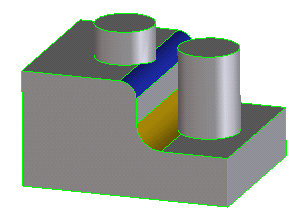 |
The blend/chamfer interferes with 3D geometry like a boss or
pocket that is not attached to the edge you intend to blend/chamfer.
|
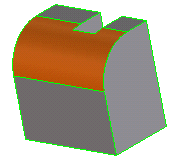 |
The blend/chamfer intersects with a face or edge that is not
directly attached to the edge you intend to blend/chamfer.
|
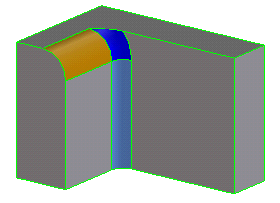 |
The blending/chamfering is tried on two edges, one concave and
one convex, meeting in one vertex.
|
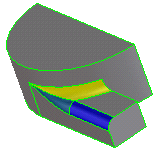 |
The blending/chamfering is tried on two edges, one concave and
one convex, meeting as tangents.
|
Examples of Complex Blending Conditions
Note
Some general advice:
- Blending allows you to remove any affected face or edge,
even those two faces which define the blended edge. But
completely removed faces cannot be recreated if you decide
to delete or modify the blend.
- Blending Only: When blending a curved edge, the blend
radius is limited by the curve radius. Make sure that the
smallest curve radius is at least twice as large as the blend
radius.
- Blending Only: If you cannot blend single edges that
meet in a complex vertex, try to blend all of them together.
The maximum is six edges.
Back