
Note: Although this section is not new with release SolidDesigner 2001, the graphics have been enhanced and some of the workarounds modified to reflect improvements. It is included in this training for completeness.
If you blend or chamfer an edge close to a boss, like edge 1 and 2 in the graphic below, without the Chk & Fix option, SolidDesigner will complete the task but corrupt the part. The blend/chamfer either undercuts the boss (1) or it cuts into the boss (2).
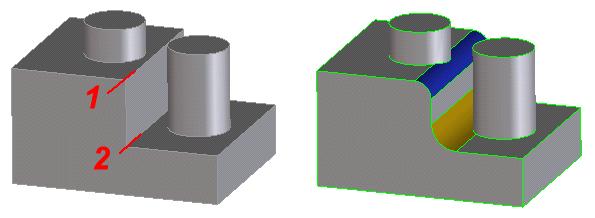
For case 1 use the Chk & Fix option together with the Rollover option.
For case 2 you should use the Chk & Fix option. In this case the automatic fix will repair the part.
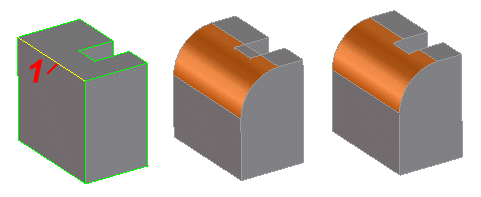
You can blend or chamfer an edge with such a high value that the blend/chamfer intersects with faces or edges that are not directly attached to the blended/chamfered edge. But you must use the Chk & Fix option.
If you blend or chamfer edge 1 without the Chk & Fix option you will corrupt the the part.
The graphic below shows an example.
If you try to blend or chamfer two edges, one concave (1) and one convex (2), that meet in one vertex, SolidDesigner rejects the blending/chamfering task, because the common vertex region would be too complex. (Note: As of release SolidDesigner 2001, this workaround is no longer necessary when blending convex/concave edges. However, since it is still valid for chamfering and for the benefit of existing users, it is included for completeness.)
See the graphic below for an example.
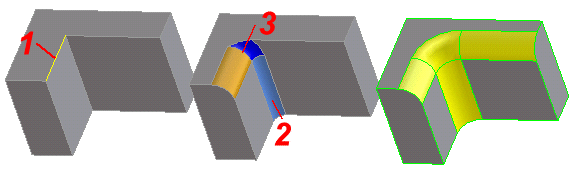
You can solve this problem using either of the following workarounds:
Workaround 1:
If you try to blend or chamfer two edges, one concave (1) and one convex (2), that meet as tangents at one vertex, SolidDesigner prompts with an error message. You need a third edge, to solve this task. In some cases, however, this third edge is a tangential edge or does not exist at all. See the graphic below for an example. (The note in tip 3 is also valid here.)
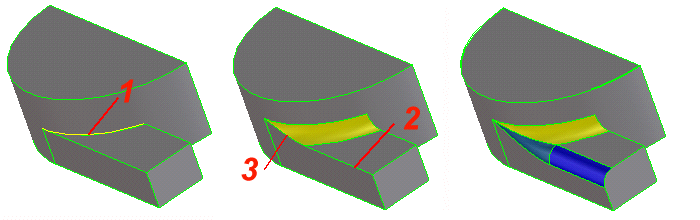
Workaround 1: