You can use Windows- type commands to define the assembly hierarchy and you don’t need to worry if the definition of the structure changes later on, because SolidDesigner imposes no constraints on the organization of the parts.
Actions performed in this section:
- Creation of a sub-assembly
- Loading of existing 3D assemblies
- Movement of parts in a structure
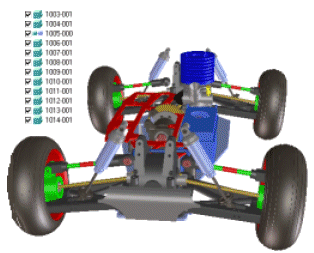



 Select Package file type assemb1000.pkg

Create New Assy
Type 1100-000 and press [Enter].

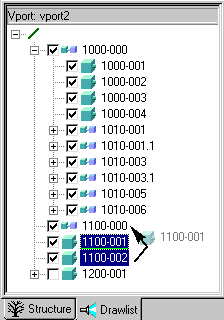
Activate the drawlist on the left-hand side of the screen.
Click on parts 1100-001 and 1100-002 and drag and drop them into the new assembly 1100-000.

Modify 
Select assembly 1100-000 in the drawlist.


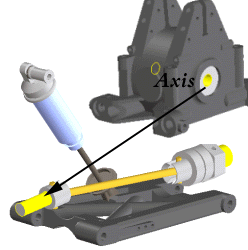
Select the axis of the differential and the axis of
the support.
 To
make parts visible or unvisible in the viewport,
activate or deactivate them in the drawlist.
To
make parts visible or unvisible in the viewport,
activate or deactivate them in the drawlist.

The second step in the positioning constrains the faces that are to be aligned within the axis.

Select the face as shown on the differential.
Select the face from the opposite support.
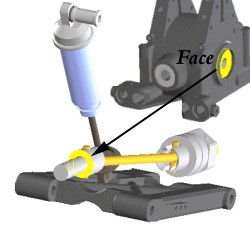
Now, complete the mounting.
Modify
Select the assembly 1100-000 in the drawlist.
Select the axis of the differential as shown, together with the axis of the front part.
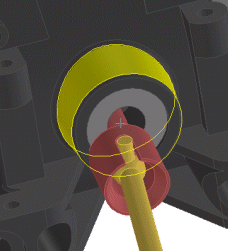
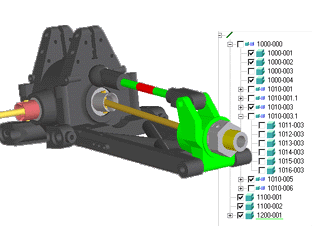
Click on assembly 1100-000,
and drag and drop it into assembly 1000-000
Click here to continue... 