In this section, you will learn how to reuse 2D drawings created in the past by your design department. You will benefit from the capability of SolidDesigner to load 2D files directly. There is no need to recreate the geometry used to generate 3D parts.
Actions performed in this section:
- Loading of a 2D drawing
- Modification of 2D geometry
- Creation of a 3D part based on 2D geometry
This section of the tutorial is applicable only if you have no ME10 license.
If you have worked through the previous section, loading data from ME10, then you can ignore this section.



 select the Package file
named assemb3_1.pkg
select the Package file
named assemb3_1.pkg select the 2D file named 1100-002.MI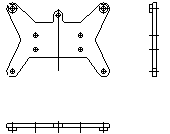

 Select all entities by drawing a dynamic rectangle
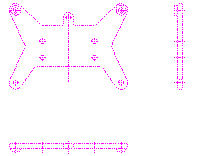

 Select
the option Chain
Select
the option Chain
Click the outer profile
Click the inner circles
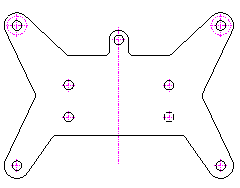

To use this drawing as a basis for new designs, you will adapt the newly created geometry.


Catch center point using [Ctrl],
[Shift] and the left-hand mouse button, click on
the circle

Catch center point using [Ctrl],
[Shift] and the left-hand mouse button, click on
the circle

Enter a value of 15
in the user
input line and press [Enter]
Select the horizontal construction line
Click on a point on the upper side of the line
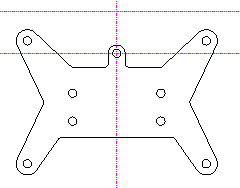

Drag a rectangle to capture all the required geometry
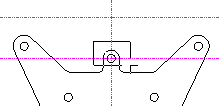

Select the intersection points
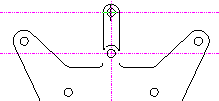
Click on the
picture to get more information
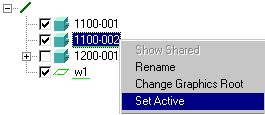
Make sure that the part
1100-002 is active.
Click on the part name with the right-hand mouse
button and select the Set Active option .


 Enter a value of 3 and press
[Enter]
Enter a value of 3 and press
[Enter]
Deselect the option 
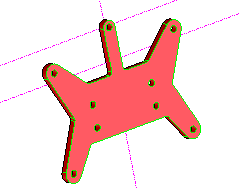
 Select the outer circles
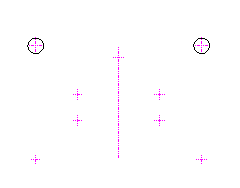


Select the inner cylinders
Enter a value of -2
and press
[Enter]
Deselect the option

Click here to continue... 