Orthogonal Side Face Cutting
SheetAdvisor 2001 provides a way to cut side faces so that they retain
a 90 degree angle to the base face. The need for this arises from the results
of building or modifying sheets using SolidDesigner commands; such sheets
can contain side faces not having a 90° angle to the sheet plane.
Cutting side faces to 90° is useful within the SheetAdvisor environment,
as some commands (Add Lip for example) require a 90° angle at
the selected edge. It is also important during the design process in general,
as production techniques of sheets are usually restricted to 90° side
faces. Standard devices cannot cut a part out of a sheet that has non-orthogonal
side faces (in the plane unfolded state).
The new functionality can cut both external and internal side faces:
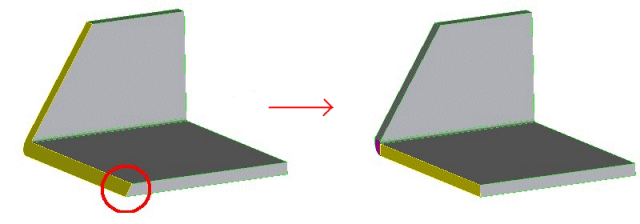
90° Face Cutting: Outer Side Faces
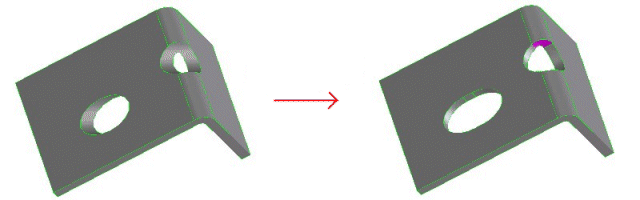
90° Face Cutting: Inner Faces belonging to Holes Punched into
the Sheet
By default, SheetAdvisor will cut all faces on the sheet to 90°.
However, cutting all side faces with this Complete option can be
slow for complex sheet metal parts. In this case, you can use the
Single
option and cut only a single hole (for example) on the sheet.
Where to Find Orthogonal Side Face Cutting
Functionality
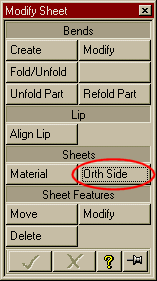
Orthogonal side face cutting is done with the Orth Side command
found in the Modify Sheet menu in SheetAdvisor:
Restrictions on Side Face Cutting
-
Cutting side faces is restricted to sheets that can be completely unfolded.
For example, the command does not work on sheets containing old offsets,
since these cannot be unfolded.
-
The sheets to be handled must have a constant thickness.
Exercise: Cutting Side Faces to 90°
In this exercise, you will cut the side faces of a part orthogonally.
-
Load the package TUT90-SHA-ortho-ex.pkg from the Parts directory:
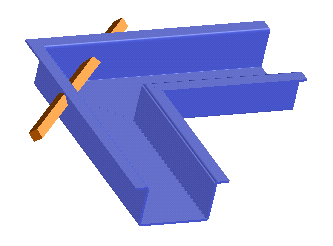 Here, two sheet parts (sha-ortho1 and sha-ortho2) have
been cut so that they fit together, and also so that the rod part (sha-ortho3)
penetrates correctly. As a result, the sheets contain non-orthogonal side
faces.
Here, two sheet parts (sha-ortho1 and sha-ortho2) have
been cut so that they fit together, and also so that the rod part (sha-ortho3)
penetrates correctly. As a result, the sheets contain non-orthogonal side
faces.
-
In SheetAdvisor, open the Ortho Side Faces Cutting menu (click Modify
Sheet in the main menu, and click Orth Side).
-
The Base Face is selected automatically on the active part and is
highlighted in the viewport. If necessary, change this selection to an
appropriate base face.
-
We shall use the default cutting option Complete, which will align
all side faces on the part according to the base face.
-
Click OK.
The side faces of the selected part are cut to 90°. You can see this
in the viewport (remove the rod sha-ortho3 from the drawlist)
but it is instructive to unfold the sheet to see the results. You could
also use the orthogonal side-face cutting on the sheet in the unfolded
state.
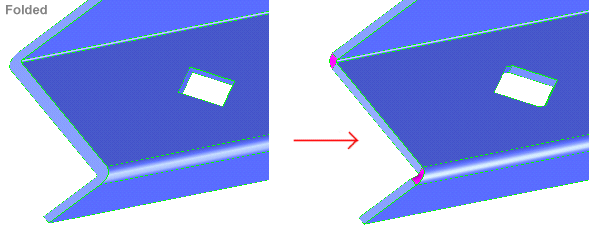
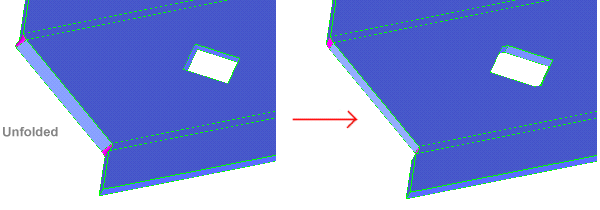
The following graphics show a detail of the resulting cut part, first
in the folded and then in the unfolded state: