This page is number two that discusses the core and cavity functions of Mold Design Advisor. Introduced here are the initial settings of the pull direction and mold block, and part splitting is described.
Exercises:
You can initialize two features in Mold Design Advisor: The
default pull direction and the mold block.
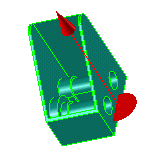 |
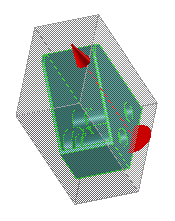
While working with mold parts, you need to specify the pull direction for separating the core and the cavity. You can set this as an initial setting in the Core & Cavity menu, which will then be used as the default in subsequent operations that use it. You can always change the direction individually per operation if necessary. As a visual aid, Mold Design Advisor displays a graphical feedback arrow in the viewport that indicates the pull direction: This can be switched off if you wish. |
 |
To create the core and cavity of a part, you first need to
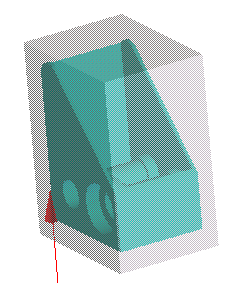
create a mold block with respect to the pull direction.
This action creates a mold assembly into which the part can be moved or copied. You can specify also the following parameters for the mold block:
|
Note: This exercise "continues" in a sense in the following exercises. Keep your results for further use.
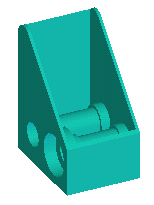
In this exercise, you will set the default pull direction on the part cored in the coring exercise, and create its mold block.
TUT90-MDA-coring-ex2.pkg from
the Parts directory:
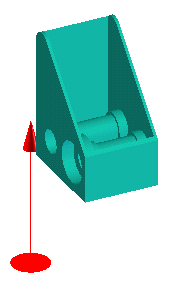
X in the Direction 3D tool.
A red feedback arrow now indicates the pull direction for the part:
The mold block is shown in the viewport:
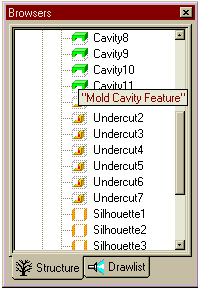 |
Mold parts can be split into their core, cavity, silhouette and undercut faces. You can split parts automatically or manually and also check the status of split parts. Special features are created to which the various faces are kept (cavity features, core features, and so on). These can be seen in the Structure browser. |
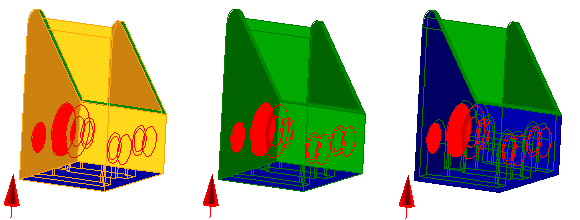
To split a part automatically, you specify the pull direction and one of three modes that determines how silhouette faces are treated:
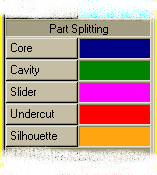 |
The following graphics show the differences between the three silhouette face modes. The color-coding is taken from the default color settings for part splitting. |
You can also split a part by manually collecting its individual faces and assigning them to the core, cavity or slider. Such form classifications can also be modified later.
One effective method of part splitting is a sort of semi-automatic process: First use the automatic part splitting method, in which the Advisor "predicts" the silhouette face classification, and then modify this classification manually later. In other words, you modify the features created with the automatic part splitting mode.
Finally, you can check if a part has been completely split with the Check Split tool. The tool highlights those faces that are not part of a core or cavity feature.
In this exercise, you will split the part from the previous exercise, first using the To Core method of automatic splitting. Then you will use manual splitting to create four slider features.
TUT90-MDA-coring-ex2.pkg from the Parts directory).
Although no change is visible on the part, in fact four plastic features have been created: cavity, core, and two undercut features.
Now create the slider features:
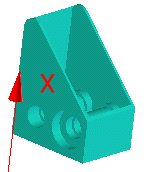
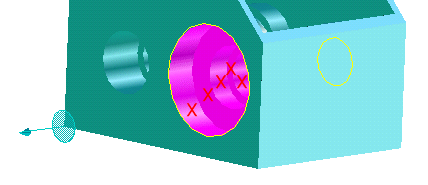
Repeat the steps above to create the other three slider features: