
Customizing Enhancements
SolidDesigner 2001 includes the following enhancements:
Exercises:
Creating New Commands and
Modifying Existing Commands (Windows only)
With the pixel editor and the macro recorder, it is easy to
create new icons and assign a command sequence to them. You can
also select existing commands and modify them. This is all done
in the User Defined Command dialog which is displayed when
you click New or Modify.
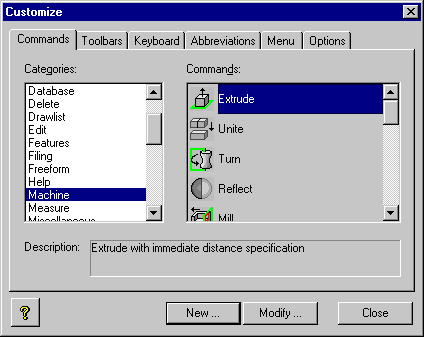 Creating User-Defined Commands
The newly-created or modified commands can then be dragged into your
personal toolbar.
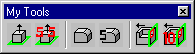 New Toolbar Containing Customized Commands
See Exercise: Creating
a Macro to Extrude a Block for step-by-step instructions on how to do this.
Creating a New Menu
with the New Menu Command (Windows only)
To create a new menu item, select New Menu in the Categories
box and drag the New Menu command in the Commands box to any menubar,
toolbar, or context menu. To change the name, right-click the
mouse button, select Button Appearance and change the text.
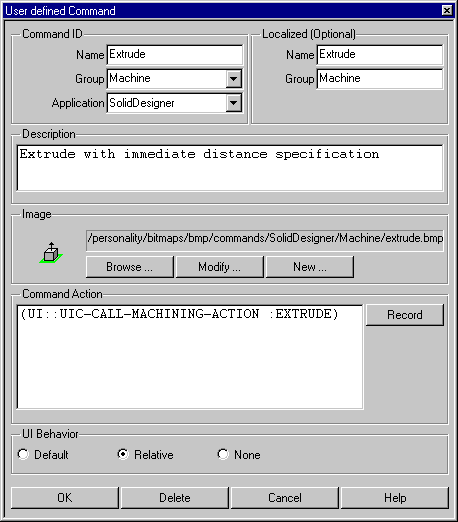
Recording a Macro (Windows only)
Recording a macro is easy with SolidDesigner 2001.
Simply click the Record button to start recording, make your selections
and/or enter values, and stop the recording when you are done.
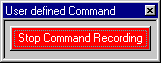 Macro Recording in Progress
Note the following when defining commands and recording macros:
- The Localized (Optional) box provides additional fields for
localized naming purposes. They are filled automatically if left
blank.
- You can specify the name of an existing group or enter a
new name to create a new group (for example, My Commands).
- The UI Behavior box specifies the position of a menu when
it is displayed:
- Default places the menu below the main menu
(assuming it has not been moved).
- Relative places the menu next to the button.
- None means no menu.
- When recording a macro, clicking in the viewport is not allowed.
- Editing an icon does not affect existing icons currently
available in toolbars and menus.
Specifying Abbreviations (Windows only)
Frequently-used commands can be called by simply entering an
abbreviated string in the user input line. For example, entering
the string dac in the user input line can be set
to execute the command Delete 3D All at Top.
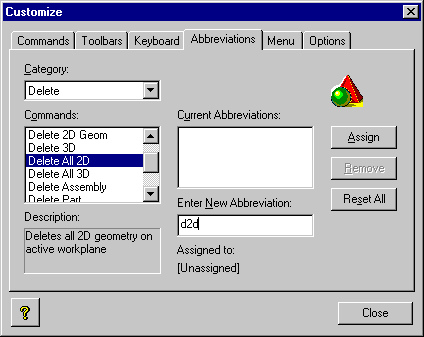 Creating an Abbreviation for the Command: Delete All
2D
Creating an Abbreviation for the Command: Delete All
2D
Application-Specific Toolbars
You can now treat this toolbar as any other toolbar. To make this toolbar
visible in other applications such as Annotation and SheetAdvisor,
switch the Visible in all applications check button on. Otherwise, it
will be specific to the current application only.
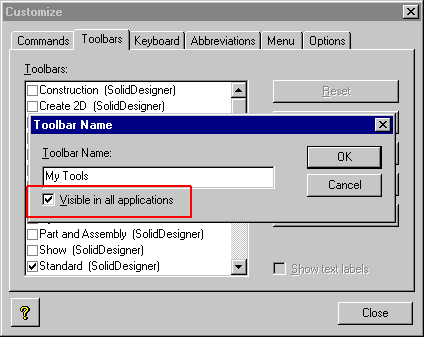 Specifying a Toolbar to Appear in All Applications
Restrictions Removed (Windows only)
With SolidDesigner release 20001, the following keyboard restrictions have been
eliminated:
- Keyboard shortcuts need to be unique across add-on applications
- Now it is possible to assign the same accelerator key to
different commands in different applications as long as these
commands are not valid at the same time.
As an example, now you can assign the function key F4 to
3D Hidden On/Off in SolidDesigner and the same accelerator
for the different Annotation command 2D Hidden On/Off.
Because both commands cannot be accessed at the same time (either
the SolidDesigner command or the Annotation command) you can
use the same accelerator for these commands.
- Keyboard customizations for add-on applications are lost
- Now you can interactively assign keyboard shortcuts to commands
which belong to add-on applications. In release 8.0X those assignments were lost
after the session. Now these assignments are correctly restored in the next
SolidDesigner session.
- Keyboard customizations are not stored during Export Customizations
- With release 2001, SolidDesigner writes a new file with name
SolidDesigner.acc into
your personal customization directory when the button Export Customizations is pressed.
This file contains all keyboard shortcut and abbreviation key sequences.
This allows keyboard customization to be taken over in the next revision.
If other add-on applications were activated when the Export
Customizations button is pressed, those keyboard customizations are written to application
specific files in application specific directories under the personal
customization directory. For example, Annotation keyboard customizations
will be stored to Annotation/Annotation.acc.
Note: This new mechanism allows the setting up of keyboard customizations
at site and corporate level by providing those files in the site and/or corporate
customization directories. The settings done in those files overwrite/augment
settings done in the sd_avail_cmds.cmd files.
Exercise 1: Creating
a Macro to Extrude a Block
This example shows you how to record a macro, assign it to
a button and place the button in a toolbar. In this example, the
macro generates an extruded block having the dimensions 100x50x55.
- Click Tools, then Customize to display the
Customize dialog.
- Make sure the Commands tab is enabled.
- Click New to display the User Defined Command
dialog.
- Under Command ID:
- Type in Extrude 55 in the Name field.
- Select Machine in the Group field.
- Select SolidDesigner in the Application field.
- Under Description, type in Extrudes a 55 mm block.
This is the prompt text.
- Under Image, click Browse and select the bitmap image
extrude.bmp from ../personality/bitmaps/bmp/commands/SolidDesigner/Machine.
- Click Modify and use the pixel editor to modify the
image in such a way that it is easily recognized. In this example,
the number 55 was added.
- Click Save to save the modified image.
- Click Record to start recording the macro. Notice
that the User Defined Command dialog is reduced to a Stop
Command Recording button. Do the following:
- Click Create 2D in the main menu
- Click Rectangle
- In the user input line, enter 0,0 100,50
- Click Machine in the main menu
- If necessary, enter a part name (for example, p1)
- In the Distance field, enter 55
- Click OK
- Click Stop Command Recording to return to the full
User Defined Command dialog.
- Click OK to close this dialog and return to the Commands
tab.
- Scroll down the Categories box and highlight Machine. Your
new command (Extrude 55) should now be available at the bottom
of the Commands box. Simply drag this command into your favorite
toolbar and close the Customize dialog.
To verify if the macro works, click the Extrude 55 button
to create an extruded block.
Exercise 2: Specifying an Abbreviation
To specify the abbreviation:
- Click Tools, then Customize to display the
Customize dialog.
- Click the Abbreviations tab.
- Select the category Delete from the Category box.
- Highlight Delete All 3D.
- Under Enter New Abbreviation, type
dac.
- Click Assign.
- Click Close to close the dialog or continue specifying
other abbreviations.
To execute the command, type dac
in the user input line and press Enter.