Exercises:
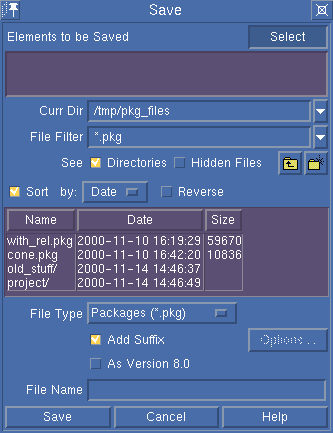
The following buttons and options are now included in the file browser:
| See Directories | Checkbox to show/hide directories (indicated by a forward slash (/) at the end of the directory name). (UNIX only.) |
| See Hidden Files | Checkbox to show/hide hidden files (files beginning with a period (.)). (UNIX only.) |
| Sort By | Sorts the files according to name, date, or size. The order can also be reversed by clicking Reverse. (UNIX only.) |
| Curr Dir | The current directory. Click the cascade button to display a selection list containing project directories. See Configuring Project Directories. (UNIX only.) |
| As Version 2000+ (8.0) |
Allows you to store objects in the format of the last major release. For current release 9.0 (SolidDesigner 2001), the last major release was release 8.0 (SolidDesigner 2000+). The supported file types are:
|
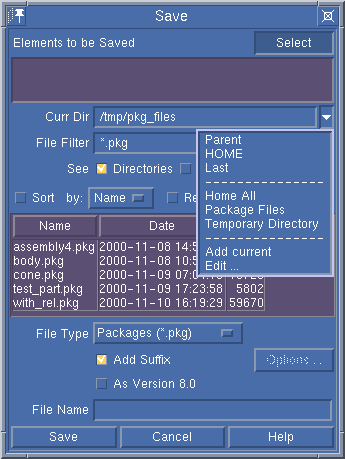
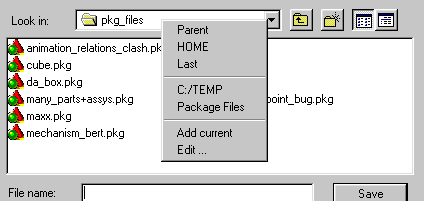
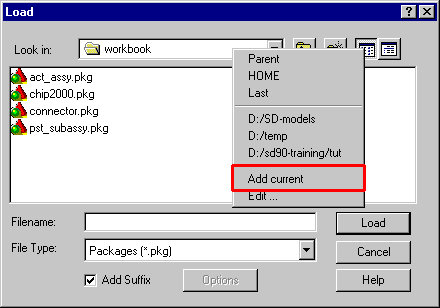
To display the project directories when loading and saving files:
| On Windows | Right-click in the Look in field. |
| On UNIX | Left-click the down arrow in the Curr Dir field. |
The first section of the menu contains three entries which are permanent:
The second section can contains any number of user-specified project directories. These directories can be added/modified/deleted interactively and/or can be set up through a corporate or site customization.
A corporate customization can put a file with name corp_filer_project_dirs into the corp customization directory. The name of a site file in a site customization directory is site_filer_project_dirs. The user-specific file resides in the user-specific customization directory and will be written automatically when the user presses the buttons Add Current or Edit ....
A XXXX_filer_project_dirs file can contain any number of the following project dir specifications:
   "/tmp"   ;; Physical directory and display name (nickname) are identical
   ("/home/joe_engineer")  ;; same as before (physical = display)
   ("Package Files" "/home/joe_engineer/SolidDesigner/pkg_files")
     ;; in this case the physical directory name is hidden from the user
     ;; and the UI will only display its "nickname"
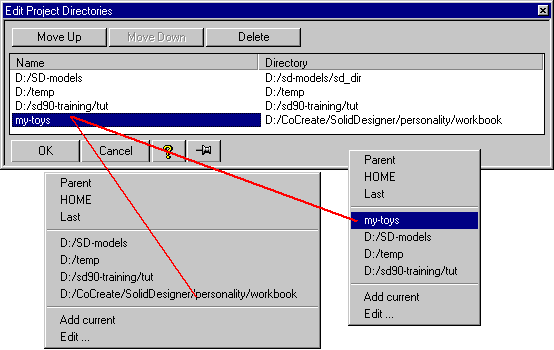
The third section contains the buttons Add current and Edit .... Click Add current to add the current directory to the list of project directories (as last item). If the current directory is already part of the list of project directories (even represented by a nickname), the current directory will not be added. The Edit ... button displays the Edit Project Directories dialog. Use this dialog to modify the list of project directories.
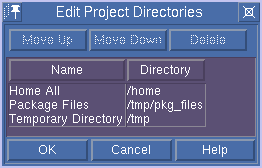
The dialog includes:
| Name | This column contains the name that appears in the project directory selection list. Think of it as a friendly alias for the physical name found in the Directory column. |
| Directory | This column contains the physical name of the directory and path. |
By selecting an entry in the table (Name or
Directory) one or more buttons become active. Use these
buttons to move the selected directory either up or down the list
or to delete it from the list. Double-click an entry in the Name
column to modify its name. You can enter a simple name like my-packages
to replace a lengthy name like D:/CoCreate/SolidDesigner/personality/workbook.
Double-click an entry in the Directory column to specify
another directory. Remember, this is the physical name of the
directory. You can change to another directory here but you cannot
modify the directory's name. You will also get an error message
if you enter an incorrect name.
Click OK to accept your changes. Any modifications to this table are accepted and the selection list in the file browser is updated accordingly. The current settings are stored automatically and loaded with the next session.
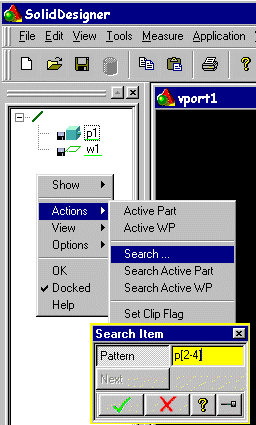
When you right-click in the browser panel to display the popup menu, the Actions panel/menu includes:
| Search ... | Lets you enter a search pattern to search for an item. |
| Search Active Part | Searches for the active part and opens the browser tree branch and scrolls the item into the visible window portion. |
| Search Active WP | Same as for Search Active Part but for workplanes. |
Use the Search Item dialog to enter any search pattern
including wildcards (* and ? characters) or regular expressions
like p[2-4]. The pattern is compared with object
names and in case of a match, the browser tree opens the branch
(if not open yet), scrolls the item into the visible window portion
and selects the object in the tree. If more objects in the browser
tree match the entered pattern, you can step through these using
the Next button.
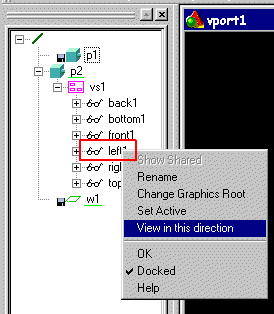
The View in this direction button is visible only when you right-click a view icon (from Annotation) in the browser. For example, you have created a view set in Annotation containing three views: front, side, and top. These are shown in the browser as view icons. Right-click to pop up the menu. If you now click View in this Direction, the current viewport changes such that you are now viewing the 3D part in the same direction as the Annotation view.
The menu order of the default Menu Bar has changed with release SolidDesigner 2001. In accordance with standard Windows convention, the menu Window is positioned before help. The last three menu items are:
The Toolbox menu is an empty menu that you can use to place your frequently-used commands. You can drag this menu item to any toolbar or to the top menu bar itself in order to get faster access to the Toolbox buttons.
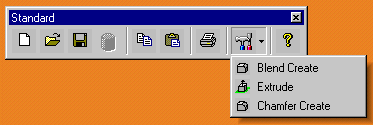
Note: The Toolbox is always presented as a pulldown menu! Unlike earlier releases, Toolbox buttons cannot be seen as plain buttons in a toolbar.
A built-in text editor (General Text Editor) provides basic text-input handling. In several situations, for example when adding a 3D Note under Process Info, a text-input window pops-up to allow you to enter text. The editor features the following:
Property dialogs are available if any of the following objects is in preselect mode:
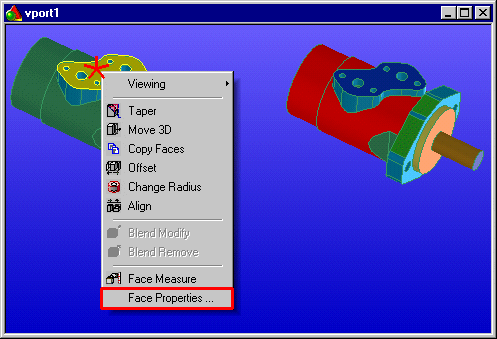
In order to access a property dialog, an object must first be preselected. Clicking the right mouse button pops up a context menu where (by default) the last menu entry offers access to the corresponding property dialog.
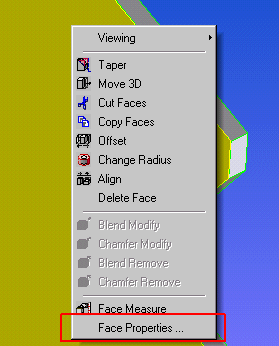
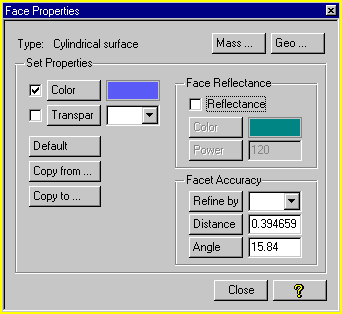
A Property dialog shows the object's properties at a glance. Additionally, the dialog also allows you to change any of the displayed values. Changing one of the properties results in an immediate update of the selected object.
From a property dialog, further dialogs can also be launched:
Depending on whether a check box for a specified property is set, the corresponding value is transferred to the selected target objects.
All properties of the selected source object are displayed under View Source Properties to the right of the dialog. The checkboxes on the left side allow you to specify individual properties to copy.
Note: These new dialogs are an alternative way of presenting the same information that is available in the Part Settings menu (Part & Assy / Settings).
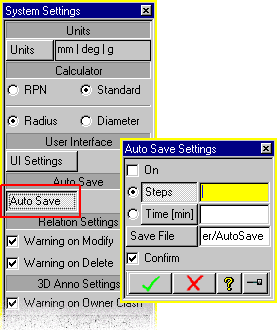
Use the Auto Save Settings menu to enable automatic saving of all 3D objects after a specified time or a given number of modeling steps. The objects are stored in a package file or in a bundle file if the Annotation module is running. The default setting is off and you can choose whether or not to confirm the autosave operation before it actually starts. Use the Save File field to specify where the autosaved file is to be saved (if different to the default).
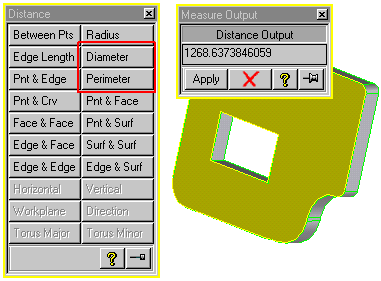
Face diameters and face perimeters can now be measured. When measuring perimeters, SolidDesigner includes the perimeters formed by features such as slots and holes as shown in the following graphic.
You can use the Option Defaults menu to choose which of the following option buttons in Machine menus are switched on or off by default:
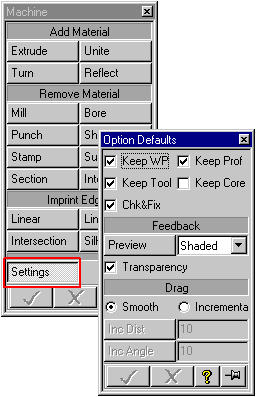
If you select an option in this menu, that feature is active, by default, whenever you use a Machine function which includes that option. For example, by clicking the Keep Prof option button off, the profile is deleted following an extrude operation.
The Preview button lets you set the default previewing mode to shaded, wire, or none.
For dynamic dragging operations, you can set the default to either smooth or incremental.
These settings are stored in the environment file. Look for
machining_settings to find out what lines should
be added to the pesd_customize in the event you do
not want to load the environment file but still want to be able
to change the default machining settings.
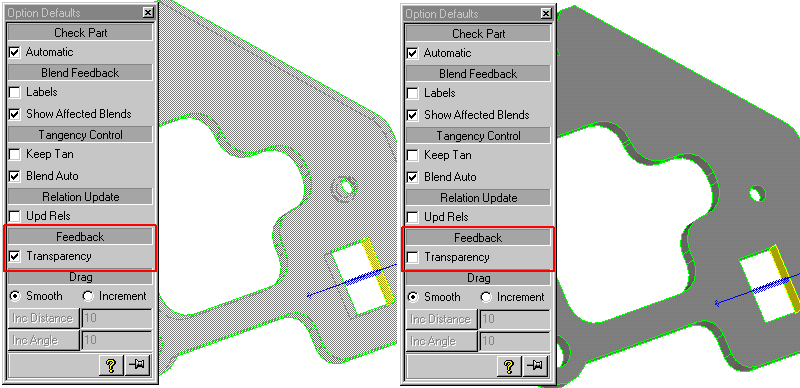
The new Feedback and Drag sections let you control how the commands Move Face, Change Radius, and Offset behave. (The Drag options are described under Setting the Option Defaults for the Machine Menu.)
To call the calculator, click Calculator in Measure. Depending on the option selected in the System Settings menu, SolidDesigner displays either a standard calculator (the default) or an RPN (Reverse Polish Notation) calculator.
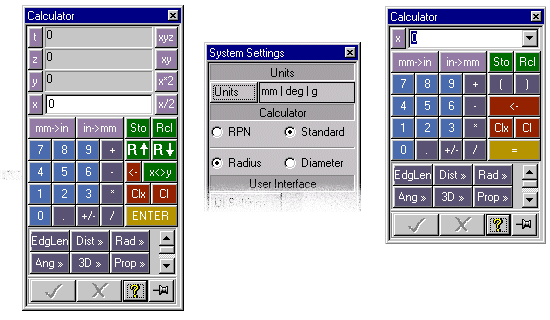
To switch between calculators, call the System Settings menu and click the radio buttons. The Radius and Diameter buttons toggle the calculators to measure radii or diameters (calculator buttons display Rad or Dia).
D:/CoCreate/SolidDesigner/personality/workbook.
piston.pkg.
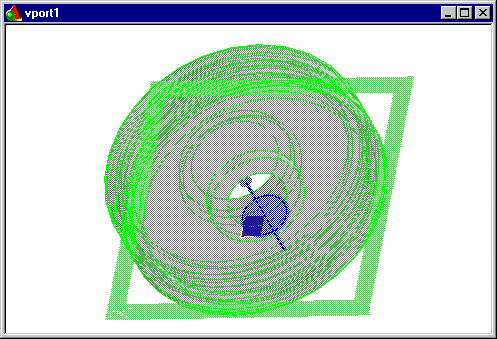
motor.pkg.