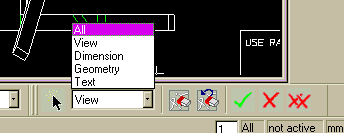
A new option has been added to the context-sensitive right-mouse-button popup menus in Annotation 2001, in conjunction with the preselection functionality. Depending on the select focus, you can access a "properties" option that allows you to change the parameters of either a preselected geometry element or a preselected view.
You can modify the following:
Exercise:
To modify the parameters of a view using preselection, first set the select focus to View, and then click the view in the viewport to highlight it. From the context sensitive menu, select the option View Properties.... This opens a box that displays the type of the view selected and in which the following parameters are displayed and can be modified:
For example:
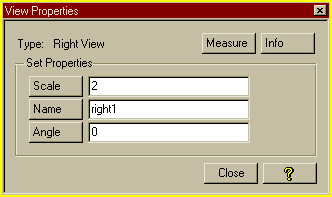
Two other buttons are available:
View Properties:
View Type: "RIGHT_SIDE"
View Name: "right1"
View Scale: 2.0
View Angle: 0.0
To modify quickly a geometry element - view geometry or manually added geometry - set the select focus (if necessary) to All or Geometry and click the geometry element in the viewport. Then select the option Geometry Properties... from the context sensitive menu. This opens a box that displays the type of geometry selected and in which the following settings are displayed and can be modified:
For example:
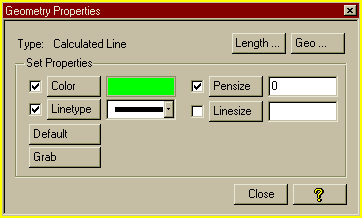
You can also "grab" the properties of other geometry in the viewport and apply them to the selected element. Alternatively, you can apply the default geometry settings to the selection.
Two other buttons are available:
Geometric Properties:
Type: "Calculated Line"
Vertex 1: -165.86816453567201,73.201215736522997
Vertex 2: -158.69423372270299,73.201215736522997
In this exercise, you will freely practise changing the properties of views and geometry elements.
Load the drawing TUT90-AM-refline-ex.mi from the Parts
directory, and change the properties of the views and geometry as
described above.
Note that the preselection focus is displayed and can be changed at the bottom of the interface. For example, on Windows systems: